If you want the best cooling for your PC, you’ll find that a regular fan usually does a better job than a reverse fan in most setups. The reason comes down to how regular fans push cool air through your case, keeping your system stable. Airflow and blade design matter a lot—fans with the right shape and pitch move air more efficiently, just like in air conditioning or indoor climate control. In the reverse fan vs regular fan pc debate, remember that energy-saving features, like those in Linkwell’s Axial Fan and Cabinet Fan, also help you get the most out of your cooling system.
Key Takeaways
- Regular fans are essential for cooling your PC. They pull in cool air and direct it to hot components like the CPU and GPU.
- Reverse fans play a crucial role by exhausting hot air from the case. This helps maintain balanced airflow and keeps your system stable.
- Using both regular and reverse fans in the right positions maximizes cooling efficiency. Place intake fans at the front and exhaust fans at the back or top.
- Linkwell fans offer advanced features like energy efficiency and low noise. They provide reliable cooling while saving on electricity costs.
- Regular maintenance, like cleaning dust and checking fan placement, ensures optimal airflow and prolongs the life of your PC components.
Reverse fan vs regular fan pc basics
What is a regular fan?
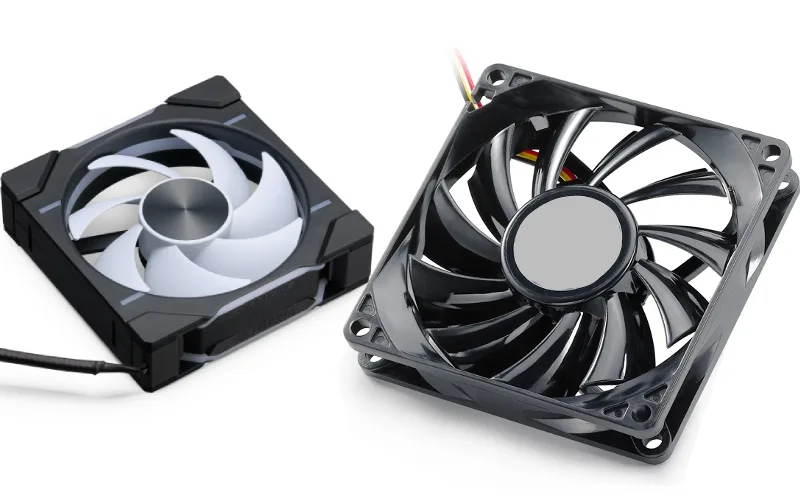
When you look inside your PC, you’ll probably spot a regular fan first. This type of fan spins in a way that pulls cool air from outside your case and pushes it toward your computer’s hottest parts, like the CPU and GPU. Regular fans are the main players in keeping your system cool and stable. They help create a steady flow of air, which is key for any reverse fan vs regular fan pc setup.
- Regular fans:
- Spin forward to draw in cool air.
- Direct airflow toward heat-generating components.
- Keep temperatures down by moving fresh air where it’s needed most.
You might think that faster airflow always means better cooling, but that’s not always true. If the air gets too warm before it leaves the case, cooling can actually slow down. Placement and direction matter just as much as speed.
What is a reverse fan?
A reverse fan works in the opposite direction. Instead of pulling air in, it pushes hot air out of your PC case. This creates negative pressure, which helps fresh air get pulled in by the regular fans. In a reverse fan vs regular fan pc setup, reverse fans are just as important for keeping the airflow balanced.
- Reverse fans:
- Spin backward to exhaust hot air.
- Remove heat from inside the case.
- Help maintain optimal airflow by working with regular fans.
Some people think running all fans at max speed is best, but that can actually hurt cooling. The right mix of regular and reverse fans, placed in the right spots, makes a bigger difference.
Typical uses in PC cooling
You’ll see both regular and reverse fans in most PC builds. Regular fans usually sit at the front or bottom, pulling in cool air. Reverse fans often go at the back or top, pushing hot air out. This setup keeps air moving smoothly through your system.
Tip: The best reverse fan vs regular fan pc setup uses both types to create a steady airflow path. Good placement and direction matter more than just having a lot of fans.
Linkwell brings industrial fan expertise to PC cooling. Their fans use advanced features that make a real difference:
| Feature | Description |
|---|---|
| Impedance Protection | Keeps fans running smoothly, even if power changes. |
| Wide Voltage Range | Works with many power supplies, no extra converters needed. |
| Energy Efficiency | Uses less power, saving you money and energy. |
| Pro Model IP54 Rating | Handles dust and moisture, so your fans last longer. |
| Airflow Performance | Moves more air than most fans, which means better cooling. |
| Noise Reduction | Runs quietly, so your PC stays peaceful. |
Modern fan designs, like those from Linkwell, use smart features to boost cooling. You get better airflow, less noise, and more control over your system’s temperature. In the reverse fan vs regular fan pc debate, using the right fan technology can give your PC a real edge.
Airflow and blade design science
How blade orientation affects airflow
You might wonder why some fans cool your PC better than others. The secret often lies in the blade orientation and shape. When you look at a fan, you’ll notice that the blade design controls how air moves through your case. Wider blades with less curve push more air with less resistance, while steeper, curved blades create higher static pressure. This means they can force air through tight spaces, like heatsinks or filters.
Here’s a quick breakdown of the science behind blade orientation and airflow:
| Principle | Explanation |
|---|---|
| Blade Shape and Curvature | Blades designed for high airflow are wider and less curved, allowing for maximum air movement with minimal obstruction. Conversely, blades for high static pressure are steeper and more curved to push air through resistance. |
| Blade Pitch | The angle of the blades affects how they interact with the air; a greater pitch increases static pressure and noise levels. |
Different blade designs also affect turbulence and pressure inside your PC. Turbine-style blades can boost airflow in open areas, while static pressure fans work best in tight spots. The correct fan direction helps you get the most out of your cooling setup.
Ceiling fan direction and PC cooling
Have you ever thought about how ceiling fan direction impacts your room’s comfort? The same principle applies to your PC. Adjusting ceiling fan direction helps mix warm and cool air, making the space feel better. In your PC, balancing intake and exhaust airflow is key. If you set the proper ceiling fan direction, you can improve air circulation and temperature distribution.
- Ceiling fans disperse warm air trapped near the ceiling, improving overall air movement.
- Effective PC cooling relies on balanced intake and exhaust airflow, just like adjusting ceiling fan direction in your home.
- Using ceiling fans alongside your PC’s airflow solution creates a more comfortable environment by managing air temperature.
When you focus on the correct fan direction, you help your PC stay cool and clean. Proper ceiling fan direction isn’t just for your living room—it’s a smart move for your PC setup too.
Linkwell Axial Fan airflow features
If you want a reliable airflow solution, Linkwell’s Axial Fan stands out. These fans use optimized blade designs to maximize air movement and heat dissipation. You get high cooling efficiency, which means your PC stays stable even during heavy use. The fans run quietly, so you won’t hear distracting noise while you work or play.
Linkwell Axial Fans also save energy. Their motors use less power but still deliver strong airflow. You can choose from different sizes and voltages to fit your setup. The easy installation and durable materials make these fans a top choice for anyone who wants better cooling and longer-lasting equipment.
Tip: When you combine the right blade design, proper ceiling fan direction, and a quality airflow solution like Linkwell’s Axial Fan, you create a PC environment that stays cool, clean, and efficient.
Cooling performance and energy efficiency
Temperature and airflow test results
You want your PC to stay cool, especially during summer gaming marathons or heavy work sessions. When you compare reverse fans and regular fans, you’ll notice that airflow measurements can look very different. Regular fans push air forward, creating a cooling breeze that sweeps across your components. Reverse fans pull hot air out, helping your system shed heat quickly. The cooling performance depends on how much air each fan moves, measured in cubic feet per minute (CFM) and static pressure.
Fan design and size play a big role in cooling. Regular fans often deliver higher forward airflow, while reverse fans excel at exhausting heat. If you use both types in the right spots, you get a balanced cooling breeze that keeps your PC comfortable. You’ll see the best results when you match fan speed and placement to your case layout.
Environmental factors also affect cooling. Room temperature, humidity, and even outdoor conditions can change how cool your PC feels. Fans boost air speed and help heat escape through convection and evaporation. You might notice that a room with a ceiling fan feels 4 to 6 degrees cooler than the actual temperature. That’s because fans create a cooling breeze that improves comfort, especially in summer. Adjusting fan speed lets you control the cooling effect, so you stay comfortable all day.
Noise and energy efficiency comparison
Nobody likes a noisy PC, especially when you’re trying to focus or relax. Regular fans and reverse fans can sound different, depending on their speed and blade design. High-speed fans move more air but can get loud. Low-noise fans, like those from Linkwell, keep your system quiet while still delivering strong cooling performance.
Energy efficiency matters just as much as cooling. You want fans that use less energy but still keep your PC cool. Linkwell’s fans use optimized motors to balance airflow and energy use. You save money on electricity and help the environment at the same time. Here’s a quick look at how noise and energy efficiency stack up:
| Fan Type | Cooling Performance | Noise Level | Energy Efficiency |
|---|---|---|---|
| Regular Fan | High (intake) | Moderate | Good |
| Reverse Fan | High (exhaust) | Moderate | Good |
| Linkwell Fan | High (intake/exhaust) | Low | Excellent |
Tip: If you want a quiet PC with great cooling, choose fans with low noise ratings and high energy efficiency. You’ll enjoy cooler summers and warmer winters without sacrificing comfort or control.
Linkwell Cabinet Fan energy-saving benefits
Linkwell Cabinet Fans stand out when you want top cooling performance and energy efficiency. These fans use advanced technology to deliver a powerful cooling breeze while keeping energy use low. You get reliable heat removal, which protects your PC from overheating and extends the life of your components.
The Cabinet Fan’s energy-saving design means you spend less on electricity, even if you run your PC all summer or winter. You can customize fan speed and airflow to match your comfort needs. The fans run quietly, so you don’t have to worry about noise disrupting your work or play. Linkwell’s fans also feature easy installation and durable materials, making them a smart choice for anyone who wants better cooling and efficiency.
- You enjoy stable temperatures and consistent cooling breeze.
- You control fan speed for maximum comfort and energy savings.
- You benefit from long-lasting performance and reduced maintenance.
If you want a PC that stays cool, comfortable, and efficient all year, Linkwell Cabinet Fans give you the control you need. You’ll notice the difference in cooling performance, energy efficiency, and overall comfort, whether you’re gaming in summer or working through winter.
Practical impacts for PC builds
Dust, airflow, and case cleanliness
Dust can sneak into your PC and cause problems if you don’t pay attention to airflow and fan setup. You might notice more dust when your case has solid or glass front panels with narrow side vents. These vents let unfiltered air enter, and dust settles on your components. If you switch to a case with a mesh front filter, you’ll see dust collect on the filter instead of inside your PC. That makes cleaning much easier. When you use more intake fans than exhaust fans, you create positive pressure. This helps keep dust from slipping through gaps and keeps your case cleaner for longer.
- Cases with mesh filters trap dust before it reaches your hardware.
- Positive pressure setups reduce how often you need to clean.
- Good circulation keeps dust from building up inside your PC.
Component placement and airflow optimization
You want your PC to run cool and smooth. The way you place your components and fans makes a big difference. If you block airflow with cables or large parts, you lose cooling power. You should set up your fans to create a clear path for air circulation. Place intake fans at the front and exhaust fans at the back or top. This setup pushes cool air toward your CPU and GPU and pulls hot air out fast.
| Aspect | Description |
|---|---|
| Effective Cooling | Keeps your PC running strong during heavy use. |
| Ventilation Strategy | Smart fan placement boosts cooling efficiency. |
| Continuous Airflow Path | Fans in the right spots help all parts stay cool. |
| Factor | Description |
|---|---|
| Intake and Exhaust Placement | Stops warm air from coming back in. |
| Airflow Blocking Surfaces | Avoid blocking fans with cables or drives. |
| Air Path Size Reduction | Make sure vents are big enough for good circulation. |
| Narrow Angled Air Duct | Wide, straight ducts improve air circulation. |
| Fan Configuration | Balance intake and exhaust for best results. |
| Aspect | Importance |
|---|---|
| Directing Cool Air | Aim airflow at hot spots like CPU and GPU. |
| Expelling Hot Air | Remove heat quickly to prevent buildup. |
| Strategic Fan Placement | Place fans where they boost circulation the most. |
Choosing Linkwell fans for best results
If you want the best air circulation and cooling, Linkwell fans are a smart choice. Their Axial Fan and Cabinet Fan models use advanced blade designs and energy-saving motors. You get strong circulation, quiet operation, and easy installation. These fans help you keep dust out, direct cool air where you need it, and maintain steady air circulation. You can customize them for your setup, so your PC stays clean and cool no matter how hard you push it.
Tip: Choose Linkwell fans to boost circulation, cut down on dust, and keep your PC running at its best.
Which fan should you choose?
Gaming, silent, and industrial PC needs
Choosing the right fan for your PC depends on how you use your system. Gaming, silent, and industrial PCs all have different cooling needs. Let’s break it down so you can see what fits your setup best.
| PC Type | Cooling Requirements |
|---|---|
| Gaming PCs | You need aggressive cooling. High heat builds up fast when you play games. Strong intake and exhaust fans keep your system cool. |
| Silent Builds | You want quiet operation. Fewer fans with higher airflow work best. Low noise fans help you focus or relax. |
| Industrial PCs | You look for durability and dust resistance. Many industrial PCs use passive cooling or fanless designs to handle tough environments. |
If you build a gaming PC, you should pick fans that move a lot of air and keep temperatures low. For silent builds, focus on fans that run quietly but still push enough air. In industrial setups, reliability and dust protection matter most. Linkwell fans fit all these needs. They offer strong airflow for gaming, quiet operation for silent builds, and tough construction for industrial PCs.
Tip: Think about how you use your PC every day. If you game a lot, go for high-performance fans. If you want a peaceful workspace, choose low-noise models. For industrial use, pick fans built to last.
Factors for selecting Linkwell solutions
You want your PC to run cool, quiet, and safe. Linkwell fans give you options for every situation. Here are some things to consider when picking the right fan:
- Safety and Compliance
- Budget Considerations
- Customization Options
You should also look at these important goals:
- Preventing overheating and throttling
- Maximizing performance
- Longer component lifespan
- Overclocking and maximizing potential
- Quieter operation
When you choose Linkwell fans, you get more than just cooling. You get fans that match your case size, airflow needs, and noise preferences. You can customize voltage, speed, and even branding. Maintenance stays simple, and you save energy with efficient motors.
Let’s compare how Linkwell fans perform in different scenarios:
| Fan Type | Performance Characteristics | Noise Levels | Energy Efficiency |
|---|---|---|---|
| AC Fans | Stable speed, good torque, high reliability | Good noise control | Over 90% motor efficiency |
| DC Fans | Great speed control, strong torque | Higher noise | More energy-efficient than AC |
| EC Fans | Smart control, minimal vibration | Low noise | Big power savings |
User reviews and expert recommendations often mention these strengths:
- Linkwell fans push strong airflow, perfect for gaming PCs and data centers.
- They run quietly, which is great for silent builds.
- The fans are reliable, so they work well in industrial setups.
Warranty and support matter too. Linkwell offers a two-year warranty for standard fans and one year for customized models. You get technical support throughout the fan’s life, so you never feel stuck.
| Brand | Warranty for Standard Fans | Warranty for Customized Fans | Technical Support |
|---|---|---|---|
| Linkwell | 2 years | 1 year | Available throughout lifecycle |
| Opetitors | Similar or longer | Varies | Varies |
Note: If you want peace of mind, Linkwell’s warranty and support keep your system protected.
You have many choices, but Linkwell fans stand out for their performance, quiet operation, and energy savings. Whether you build a gaming rig, a silent workstation, or an industrial PC, you can find a Linkwell fan that fits your needs.
Conclusion
You’ve made it to the end of the reverse fan vs regular fan PC cooling debate. So, which fan should you pick for your setup? Regular fans usually win when it comes to cooling most PCs. They push cool air straight to your hottest components, keeping your system stable and your games running smoothly. Reverse fans play a key role too. They help exhaust hot air, working together with regular fans to create a balanced airflow.
Let’s break down what you’ve learned:
- Regular fans: Best for bringing in cool air and lowering temperatures.
- Reverse fans: Great for removing heat and keeping airflow balanced.
- Linkwell fans: Offer high cooling efficiency, quiet operation, and energy savings.
Tip: If you want the best results, use both regular and reverse fans in your PC. Place intake fans at the front and exhaust fans at the back or top. This setup keeps your system cool and clean.
Here’s a quick table to help you decide:
| Fan Type | Best Use | Cooling Power | Noise Level | Energy Efficiency |
|---|---|---|---|---|
| Regular Fan | Intake | ⭐⭐⭐⭐⭐ | ⭐⭐⭐ | ⭐⭐⭐⭐ |
| Reverse Fan | Exhaust | ⭐⭐⭐⭐ | ⭐⭐⭐ | ⭐⭐⭐⭐ |
| Linkwell Fan | Intake/Exhaust | ⭐⭐⭐⭐⭐ | ⭐⭐⭐⭐⭐ | ⭐⭐⭐⭐⭐ |
You want a PC that stays cool, runs quietly, and saves energy. Linkwell’s Axial Fan and Cabinet Fan give you all that. You get reliable cooling, less noise, and lower power bills. You can customize your setup for gaming, silent work, or industrial use.
Ready to upgrade your cooling? Choose Linkwell fans for your next build. You’ll notice the difference right away. Your PC will thank you!
You want your PC to stay cool and run smoothly. Regular fans usually give you better cooling because they push fresh air right where it’s needed. Accurate airflow measurement and smart fan laws help you get the most out of your setup. When you match your fan choice to your PC’s needs, you boost reliability and extend your system’s life. Here are some quick tips:
- Use airflow fans for open spaces and static pressure fans for tight spots.
- Check for dust often and reapply thermal paste when upgrading.
| Recommendation | Description |
|---|---|
| Regular Maintenance | Clean dust to keep airflow strong. |
| Thermal Paste | Reapply for better heat transfer during upgrades. |
Choose Linkwell fans for quiet, efficient, and reliable cooling. Your PC will thank you! 😊
FAQ
What’s the difference between a regular fan and a reverse fan in a PC?
A regular fan pulls cool air into your PC. A reverse fan pushes hot air out. You need both types to keep your system cool and dust-free.
How many fans should I use for the best cooling?
You get great results with two intake fans and one or two exhaust fans. This setup keeps air moving and helps your PC stay cool during heavy use.
Do Linkwell fans fit all PC cases?
You can find Linkwell fans in many sizes and styles. They work with most PC cases. You can also customize them for special setups.
Will using more fans make my PC quieter?
Adding more fans does not always mean less noise. You should pick low-noise models like Linkwell’s. Place them carefully for quiet and cool performance.
How often should I clean my PC fans and filters?
You should check your fans and filters every few months. Clean or replace filters when you see dust buildup. This keeps airflow strong and your PC healthy.