You might notice some warning signs when your CPU fan starts to fail. These symptoms include loud noises, overheating, system instability, unexpected shutdowns, or error messages. Many users have reported issues such as loud fan noises and overheating, which can indicate a potential CPU fan failure. You can check your CPU fan yourself. Brands like Linkwell provide high-quality cooling solutions to help prevent these problems.
Key Takeaways
- Listen for unusual noises from your CPU fan, like grinding or rattling. These sounds often indicate a problem that needs attention.
- Monitor your computer’s temperature. If it exceeds 90°C, your CPU may overheat, leading to performance issues or shutdowns.
- Act quickly if you notice symptoms of fan failure. Clean dust from the fan, check connections, and consider replacing the fan with a reliable model.
Common CPU Fan Failure Symptoms
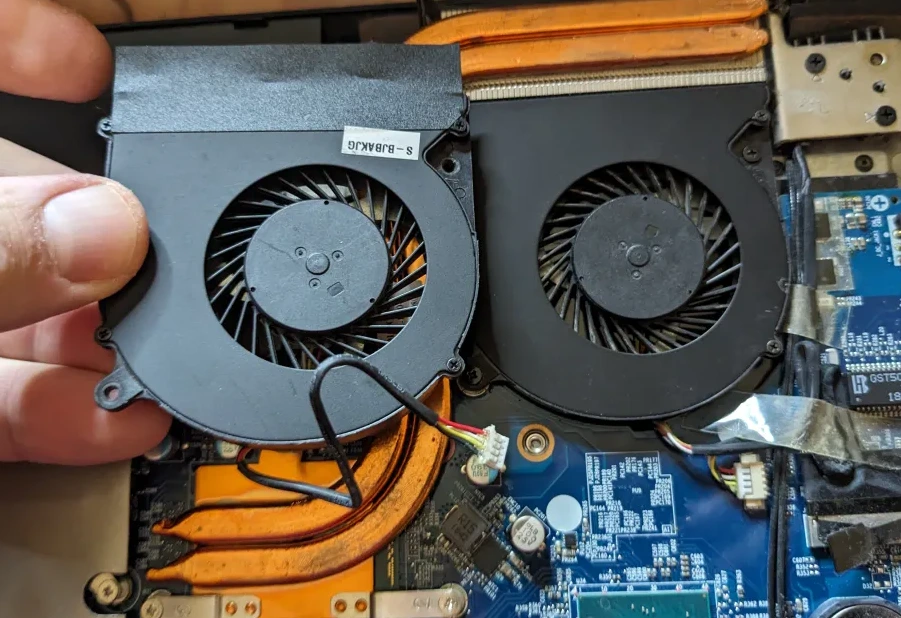
When your computer starts acting up, you might wonder if the CPU fan is the problem. Let’s break down the most common cpu failure symptoms so you know what to look for and how to respond.
Unusual Noises
You might hear strange sounds coming from your computer. These noises can be a big clue that something’s wrong with the fan. Listen for:
- Grinding sounds
- Rattling sounds
- Clicking sounds
Unusual noises like grinding, rattling, or clicking often mean the fan is wearing out or has a mechanical issue. If you notice these symptoms, check if the fan is spinning smoothly. Sometimes, dust or debris can get stuck, but often, these sounds point to cpu fan failure. A reliable Computer Chassis Fan, like the ones from Linkwell, can help prevent these problems and keep your system quiet.
Overheating Issues
Overheating is one of the most obvious symptoms of cpu fan failure. Your computer might feel hot near the vents or on the bottom. You could see your system slow down, freeze, or crash. Programs might take longer to open or respond. In extreme cases, your computer switches off immediately to avoid damage.
Here’s a quick look at dangerous temperature levels:
| Temperature (°C) | Description |
|---|---|
| 80 | Generally safe for most CPUs |
| 90 | Thermal throttling occurs |
| 100 | CPU may shut down or sustain damage |
If your CPU temperature goes above 90°C, thermal throttling kicks in. This means your computer slows down to protect itself. At 100°C, the system might shut down to prevent permanent damage. Prolonged overheating can shorten the lifespan of your CPU and other parts. Keeping your system cool with a high-quality fan, like Linkwell’s Computer Chassis Fan, helps avoid these issues.
System Instability
System instability is another sign of cpu fan failure. You might notice your computer freezes, crashes, or acts strangely. Sometimes, the screen goes black, or you get stuck at the no post stage, where the computer won’t start up at all. These symptoms can make it hard to use your computer for work or play. Overheating often causes these problems, so it’s important to check your fan if you see them.
Unexpected Shutdowns
Sudden shutdowns can be scary. Your computer might turn off without warning, especially when it gets too hot. Manufacturers design systems with thermal safeguards. These features turn off your PC before any damage happens. For example, some Intel processors have a Thermtrip feature that shuts down the CPU at critical temperatures. If you experience shutdown, it’s a clear sign that your cooling system needs attention. Replacing your fan with a reliable model, such as Linkwell’s Computer Chassis Fan, can help prevent sudden shutdowns and keep your system running smoothly.
Error Messages
Sometimes, you’ll see error messages when you start your computer. The BIOS or operating system might warn you about fan problems. Here are some common messages:
| Error Message | Description |
|---|---|
| CPU Fan Error, press F1 to continue | BIOS detects a failure in the CPU fan or no fan is connected. |
You might also see a no post situation, where the computer doesn’t boot at all. BIOS warnings can be helpful, but sometimes they show up because of incorrect settings. If you get a fan error, check your BIOS settings and make sure the fan is connected properly. If the warnings continue, consider replacing your fan with a high-quality option like Linkwell’s Computer Chassis Fan.
Tip: If you notice any of these symptoms, act quickly. Early detection can save your computer from serious damage. Reliable fans from Linkwell offer advanced cooling and help prevent cpu fan failure.
How to Spot and Respond to CPU Failure Symptoms
Visual and Physical Checks
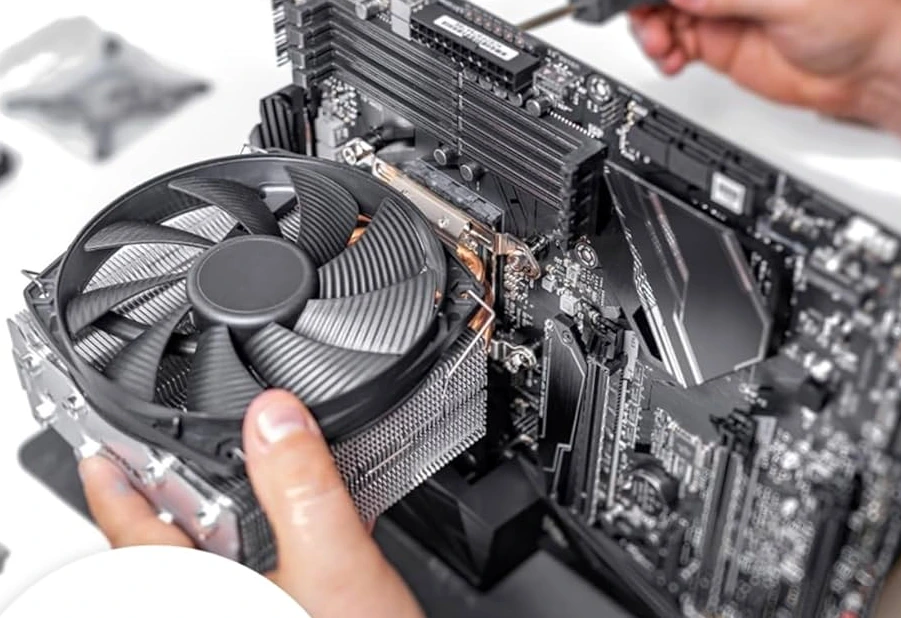
Wondering how to tell if your cpu fan is failing? Start with a quick look inside your computer. Open the case and check if the fan spins smoothly. Look for dust buildup on the blades or vents. Dust can block airflow and cause thermal issues. Try turning the fan gently with your finger. If it feels stuck or makes grinding noises, you might have mechanical wear and tear of the fan. Make sure the cables connect firmly to the CPU_FAN header. These simple steps help you spot cpu fan failure before it gets worse.
Monitoring Temperatures
You can monitor temperature using software tools. Built-in options like Windows Performance Monitor work well. Third-party apps such as HWMonitor, Core Temp, and CPU-Z give you more details. These programs show real-time thermal readings and fan speeds. Most modern motherboards have sensors, but their accuracy depends on how well they contact the CPU. Processors with built-in sensors, like Pentium III and Pentium 4, offer better thermal protection behaviours. If you see high thermal numbers, your fan may not cool properly. This is a key sign when troubleshooting cpu fan failure.
Immediate Actions
If you notice signs of cpu fan failure, act fast. Here’s a quick troubleshooting checklist:
- Check the fan’s cables and connections.
- Clean dust from blades and vents with compressed air.
- Spin the fan manually to check for clogs or noise.
- Enter BIOS and review fan speed settings.
- Adjust thresholds if needed.
- Save changes and restart.
- If problems continue, get expert help.
Replacing a faulty fan with a high-quality option, like Linkwell’s Computer Chassis Fan, helps prevent future thermal problems and keeps your system safe.
Conclusion
You now know the warning signs that can help you spot cpu fan failure before it causes real trouble. If you hear strange noises, notice your computer getting hot, or see error messages, don’t ignore them. These symptoms often mean your cooling system needs attention. Acting quickly can save your computer from costly damage.
Here’s what you can do next:
- Check your fan and clean out any dust.
- Use temperature monitoring tools to keep an eye on your system.
- Replace faulty fans with reliable options.
Tip: If you feel unsure about fixing the problem yourself, reach out to a professional. It’s better to get help than risk your computer’s health.
Choosing a trusted brand like Linkwell gives you peace of mind. Their Computer Chassis Fans offer strong cooling, quiet operation, and long-lasting performance. You can find more details and support on their official website.
Stay alert to the signs, and you’ll keep your computer running smoothly for years to come!
Spotting cpu fan failure early protects your computer from overheating and costly repairs. Respond within seconds to warning signs. Trusted brands like Linkwell offer reliable replacements. If you feel unsure, ask a professional for help.
Regular cleaning and quick action save you money and keep your system safe.
FAQ
How do I know if my CPU fan is working?
You can check if the fan spins when your computer turns on. Listen for noise or feel for airflow near the vents.
Can I use my computer if the CPU fan fails?
You should not use your computer if the CPU fan fails. Overheating can damage your CPU fast. Replace the fan before using your system again.
What makes Linkwell’s Computer Chassis Fan a good choice?
- High cooling power
- Quiet operation
- Long-lasting design
- Easy installation
You get reliable performance for your computer