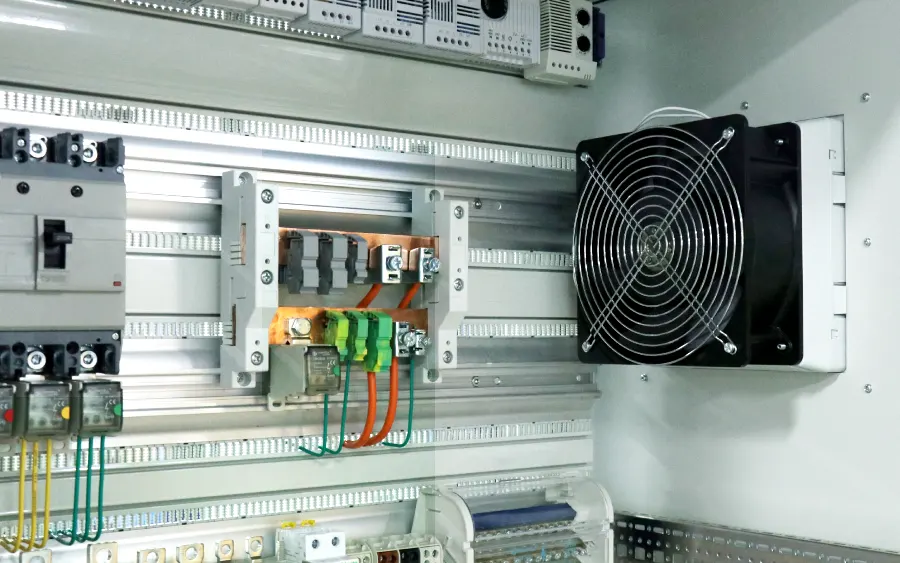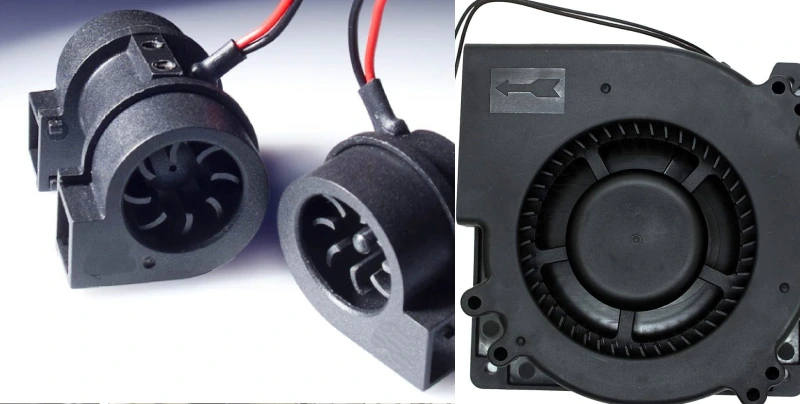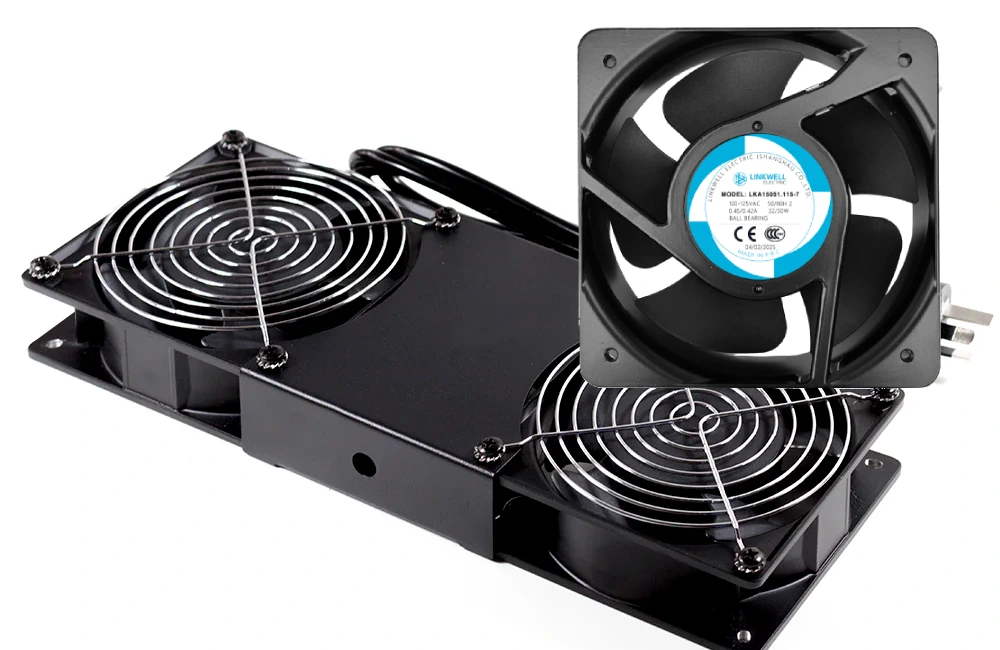
Want to keep your PC running cool and smooth? The most effective way is to set up a balanced system of intake and exhaust fans. Intake fans pull cool air in, helping your CPU and GPU stay at safe temperatures. Exhaust fans push hot air out so heat does not get trapped inside. When you get the Case Airflow right, fresh air flows over your components before leaving the case. This stops heat from building up and keeps your system from slowing down. For trusted cooling solutions, you can always count on Linkwell.
Key Takeaways
- Set up a balanced system of intake and exhaust fans to keep your PC cool. Intake fans should pull in cool air, while exhaust fans push out hot air.
- Maintain a 1:1 ratio of intake to exhaust fans for optimal airflow. Experiment with fan placement to find the best configuration for your specific case.
- Keep cables organized and out of airflow paths. Good cable management improves cooling efficiency and helps your PC run smoothly.
- Regularly clean your PC and its filters to prevent dust buildup. Clean components help maintain airflow and extend the life of your hardware.
- Consider using quality fans like Linkwell for better performance. They offer high airflow, durability, and effective dust filtration.
PC Airflow Basics
What Is PC Airflow?
When you hear people talk about pc airflow, they mean how air moves through your computer case. Good case airflow keeps your components cool by moving fresh air in and pushing hot air out. You want air to flow smoothly from intake fans at the front or bottom, across your motherboard, and out through exhaust fans at the back or top. This steady movement helps your CPU, GPU, and other parts stay at safe temperatures.
Let’s break down some key principles that shape case airflow and cooling:
| Principle | Description |
|---|---|
| Laminar vs Turbulent Flow | Smooth (laminar) airflow cools better than chaotic (turbulent) airflow. |
| Pressure Differentials | High static pressure fans push air through tight spaces and dense parts. |
| Intake and Exhaust Placement | Smart fan placement avoids hotspots and keeps cooling even. |
You also have to think about how your case is built. A well-designed case layout lets air move without hitting too many obstacles. Good cable management and open pathways help air reach every corner. Linkwell offers fans and accessories that fit many case designs, making it easier to set up the airflow you need.
Why Airflow Matters
You might wonder why case airflow gets so much attention. The answer is simple: heat is the enemy of performance. If hot air gets trapped, your PC can slow down, crash, or even suffer hardware damage. Studies from top universities show that improving airflow can drop component temperatures by up to 20°C. That means your PC runs faster and lasts longer.
Here are some reasons to care about case airflow:
- It prevents overheating and system crashes.
- It extends the life of your CPU, GPU, and other parts.
- It keeps noise down by letting fans run at lower speeds.
- It helps your PC handle high room temperatures, especially in summer.
Tip: Always check that your intake and exhaust fans work properly and that nothing blocks the vents. If you need reliable fans, Linkwell has you covered with high-quality cooling solutions for any setup.
Case Airflow Pressure Types
Positive vs Negative Pressure
When you set up your PC fans, you create either positive or negative air pressure inside your case. Positive pressure happens when you have more intake fans or stronger intake airflow than exhaust. Negative pressure is the opposite—more exhaust fans or stronger exhaust airflow than intake.
Positive pressure means more air comes in than goes out. Negative pressure means more air leaves than comes in. Thermal engineering research shows that negative pressure often cools better because it pushes hot air out faster. This setup can lower your component temperatures and reduce hot spots where heat might get trapped.
You can control air pressure by choosing the right fans. For example, Linkwell’s Axial Fan and Cabinet Fan give you options for both strong intake and powerful exhaust. These fans come in different sizes and airflow ratings, so you can match them to your case and cooling needs.
Impact on Cooling and Dust
The type of air pressure you choose affects both cooling and dust buildup. Here’s what you need to know:
- Positive air pressure helps keep dust out. Intake fans with filters block dust before it enters your case.
- Negative air pressure cools your PC better by pulling hot air out quickly. However, it can suck dust in through unfiltered gaps.
- With positive pressure, you only need to put filters on your intake fans. This makes cleaning easier and keeps your PC cleaner.
- Negative pressure can lead to more dust inside, even if you use filters, because air gets pulled in from every crack and vent.
If you want less dust, go for positive pressure and use quality filters. If you want the best cooling, negative pressure might be your pick, but you’ll need to clean your PC more often. Linkwell’s Axial and Cabinet Fans help you balance airflow and pressure, so you get the right mix of cooling and cleanliness for your setup.
PC Fan Setup and Configuration
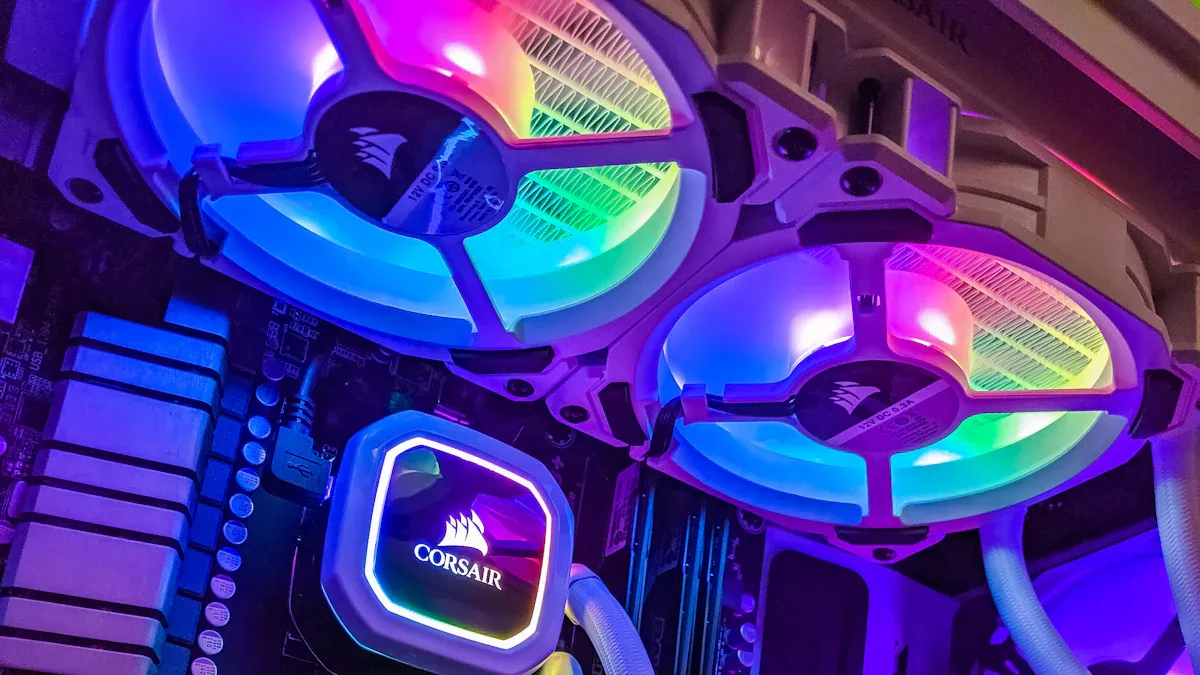
Setting up your case fans the right way makes a huge difference in how cool and quiet your PC runs. You want to get the configuration just right so air moves smoothly through your case. Let’s break down the best practices for intake and exhaust placement, show you what makes Linkwell Computer Chassis Fans stand out, and help you avoid common mistakes that can ruin your airflow.
Intake and Exhaust Placement
When you plan your configuration, start by thinking about where to put your intake and exhaust fans. Intake fans pull cool air into your case. Exhaust fans push hot air out. This setup keeps your components from overheating and helps your PC run at its best.
Here are some easy ways to improve airflow with smart fan placement:
- Place intake fans at the front or bottom of your case. These spots bring in the coolest air.
- Put exhaust fans at the back or top. Hot air rises, so these locations help push heat out fast.
- Aim intake fans at your CPU and GPU. Direct airflow to these parts to keep them cool.
- Use a 1:1 ratio of intake to exhaust fans for a balanced configuration. Some people like to experiment, but this ratio works well for most mid-tower cases.
- Try different configurations if you want to fine-tune your cooling. Every case is a little different.
Tip: Intake fans with dust filters keep your PC cleaner. Exhaust fans don’t need filters since they push air out.
Proper fan placement does more than just cool your PC. It also helps prevent dust buildup and keeps noise down. Larger fans can move more air at lower speeds, which means less noise and better cooling. If you want an ideal case fan setup, focus on airflow direction and make sure nothing blocks the path of the air.
Linkwell Computer Chassis Fan Features
Choosing the right case fans is key to a great configuration. Linkwell Computer Chassis Fans give you several advantages that help you build the ideal case fan setup. Here’s how they compare to industry standards:
| Specification | Linkwell Product | Industry Standard |
|---|---|---|
| Efficiency | F9 | Meets/exceeds |
| Filtration Grade | ULPA Filter | Meets/exceeds |
| IP Class | IP54, IP55, IP56 | Meets/exceeds |
| Noise Level | 46-50 dB(a) | Acceptable range |
| Operating Temperature Range | -30 to +70 °C | Standard range |
You get high airflow for maximum cooling, even in tough environments. The advanced filtration keeps dust out, which means less cleaning for you. These fans run quietly, so your PC stays silent even when you push it hard. The wide operating temperature range means you can use them in almost any setup.
Linkwell fans also support PWM control. This feature lets your system adjust fan speed based on temperature, so you get the right balance of cooling and noise. The fans are easy to install and work with most cases, making them a smart choice for any configuration.
Common Setup Mistakes
Even if you buy the best case fans, a poor configuration can ruin your airflow. Here are some common mistakes people make and how you can avoid them:
- Forgetting to calculate the amount of air that needs to be moved. If you don’t know how much air your case needs, you might not get enough ventilation.
- Ignoring the temperature of the room. If your room is hot, your fans need to work harder. Always consider the ambient temperature when planning your configuration.
- Measuring your case space wrong. If you don’t check the size and space inside your case, you might pick fans that don’t fit or don’t move air where you need it.
- Not thinking about airflow direction. If your intake and exhaust fans fight each other, you’ll get hot spots and poor cooling.
- Treating cooling as an afterthought. Plan your configuration before you build your PC, not after.
- Blocking airflow with cables or drives. Messy cables or crowded drive bays can block air and ruin your cooling.
- Using too many small fans instead of fewer large ones. Larger fans can move more air at lower speeds, which means better cooling and less noise.
Note: If you want easy ways to improve airflow, keep your cables tidy, use dust filters, and check your fan direction. These simple steps can make a big difference.
A good configuration means your intake and exhaust fans work together. You get steady airflow, lower temperatures, and a quieter PC. If you want the best results, use quality case fans like those from Linkwell and pay attention to every part of your setup.
Improving Case Airflow
Cable Management
Messy cables can ruin your PC’s airflow and make cooling much harder. When you keep cables neat and out of the way, you help air move smoothly through your case. Here’s how good cable management boosts cooling:
- Improved airflow: Tidy cables don’t block fans or vents, so cool air can reach your components.
- Cooling efficiency: Neatly routed cables let hot air escape faster, which helps your fans work better.
- System performance: Better airflow means your PC stays cooler and runs at top speed for longer.
Try using cable ties or Velcro straps to bundle wires together. Route cables behind the motherboard tray if your case allows it. You’ll notice your cooling improves right away.
Cleaning and Maintenance
Dust is the enemy of cooling. It can block airflow, clog fans, and cover heatsinks, making it harder for your PC to stay cool. When dust builds up, your system can overheat and slow down. Regular cleaning keeps airflow strong and protects your hardware.
You should check your fans and filters at least once or twice a month. If your room is dusty, check even more often. Use a can of compressed air to blow dust out of fans, heatsinks, and vents. Lift your PC off the floor and avoid smoking or vaping nearby to keep dust away. Keeping your system clean helps your cooling stay effective and your PC last longer.
Using Dust Filters
Dust filters are a must for any PC focused on cooling. Place them on the intake side of your fans to stop dust before it gets inside. If filters get clogged, airflow drops and your cooling suffers. Clean your filters regularly to keep air moving freely.
- Dust filters block dust from entering your case.
- Clogged filters reduce airflow and cooling efficiency.
- Clean filters every few weeks for best results.
For even better dust management and cooling, consider Linkwell Cabinet Fans and Axial Fans. Cabinet exhaust fans push hot air out quickly, which is great for large or crowded cases. Axial fans move air fast and work well in smaller setups. Both types run quietly and are easy to install, making them smart choices for keeping your PC cool and clean.
| Fan Type | Advantages | Best Use Case |
|---|---|---|
| Cabinet Exhaust Fan | Pushes hot air out fast, prevents heat damage, strong airflow | Large or packed cases |
| Axial Fan | Moves air quickly, quiet, easy to install | Small cases with open airflow |
Tip: Regular cleaning and smart fan choices make a huge difference in your PC’s cooling and dust control.
Special PC Cooling Solutions

AIO Coolers and Radiators
If you want to take your PC’s cooling to the next level, you might want to try an AIO (All-In-One) liquid cooler or a radiator setup. These systems use liquid to move heat away from your CPU, which can make a big difference, especially if you love gaming or push your PC hard. AIO coolers are self-contained, so you don’t have to worry about leaks or complicated maintenance.
Here’s a quick look at how AIO coolers compare to traditional air coolers:
| Feature | AIO Coolers | Traditional Air Coolers |
|---|---|---|
| Heat Transfer Efficiency | Higher due to liquid coolant | Lower, relies on air |
| Installation Ease | Relatively easy to install | Can be more complex |
| Maintenance | Low, self-contained systems | May require more upkeep |
| Cooling Performance | Better for high-performance CPUs | Adequate for standard use |
| Longevity | Improves CPU lifespan | Standard lifespan |
AIO coolers often keep your CPU temperatures lower, which helps your system stay stable and last longer. Many modern PC cases even have special spots for mounting radiators, making installation a breeze.
Custom Fan Options
Sometimes, you need more than just standard fans to get the airflow just right. Modular PC cases let you move things around, add mesh panels, or even create separate chambers for your hottest parts. This flexibility means you can place fans exactly where you need them and keep heat from building up in one spot.
- Modular designs make it easy to add or move fans.
- Mesh panels boost air intake and help your system breathe.
- Separate chambers keep your GPU and CPU from heating each other up.
If you have a unique build or special requirements, Linkwell offers OEM and ODM customization services. You can choose from different voltages, waterproof ratings, and even get help with airflow calculations. This way, you get high-quality fans that fit your exact needs. Linkwell also supports both large and small orders, so you can test out their products before committing to a big purchase.
| Customization Option | Benefit |
|---|---|
| Voltage options from 5V to 48V | Fits many equipment types, no extra mods needed |
| IP67 and IP68 waterproof fans | Safe for harsh or wet environments |
| Airflow and static pressure help | Pick the right fan size and power for your setup |
| CE, RoHS, ISO9001 compliance | Quality and reliability for peace of mind |
Tip: If you want a PC that runs cool and quiet, don’t be afraid to mix and match cooling solutions. With the right setup, you can boost cooling performance and keep your system running smoothly for years.
You can get the best cooling by following a few simple steps. Place intake fans at the front and bottom, and set exhaust fans at the top and rear. Keep cables tidy and clean your PC often. Use a front-to-back airflow pattern for steady temperatures. Regular maintenance and balanced intake and exhaust fans help prevent overheating and extend your PC’s life.
| Feature | Linkwell Fans | Other Brands |
|---|---|---|
| Air Volume Handling | High volumes | Varies |
| Durability | Engineered for durability | Varies |
Linkwell offers reliable fans that handle high exhaust needs and work well in harsh environments. Try these tips and consider Linkwell for your next upgrade!
FAQ
How many fans do you need for a pc case?
You usually want at least two fans in your pc case. One fan pulls cool air in, and the other pushes hot air out. If your pc runs hot or you use a big graphics card, add more fans for better airflow.
What is the best way to set up fans in a pc case?
Place intake fans at the front or bottom of your pc case. Put exhaust fans at the back or top. This setup lets cool air flow over your pc parts and pushes hot air out. Always check that nothing blocks your fans.
Do more fans always mean better cooling for your pc?
Not always. Too many fans in your pc case can cause air to swirl and create dead spots. Focus on balanced airflow. Use quality fans and make sure air moves smoothly from intake to exhaust in your pc case.
How often should you clean your pc case fans?
You should check your pc case fans every month. Dust can build up fast and block airflow. Use compressed air to clean your fans and filters. Clean fans help your pc stay cool and run better.
Can you mix different fan sizes in one pc case?
Yes, you can use different fan sizes in your pc case. Just make sure all fans work together to move air in the same direction. Mixing sizes helps you fit more fans in tight spots and improve airflow in your pc.