
If you want your Windows PC, gaming rig, or laptop to last longer and run smoother, controlling fans on pc is a must. Heat is the enemy of performance. When your system gets too hot, parts like your CPU and GPU can slow down or even get damaged. You can avoid these headaches by controlling fans on pc, which keeps everything cool and stable.
Many users overlook how much controlling fans on pc can boost both speed and reliability. Whether you’re gaming, working, or just browsing, controlling fans on pc helps prevent overheating and keeps your machine running at its best. If you want a dependable solution, consider the Computer Chassis Fan from Linkwell. This high-performance fan gives your system the airflow it needs to stay cool, no matter how hard you push your pc fans.
Key Takeaways
- Choose the right fan control method for your PC. Use BIOS for stability, software for flexibility, or a fan controller for hands-on adjustments.
- Invest in high-quality fans like the Linkwell Computer Chassis Fan. They provide strong airflow, low noise, and long-lasting performance.
- Regularly clean your PC to prevent dust buildup. This helps maintain fan efficiency and keeps your system cool.
- Monitor your system temperatures. Adjust fan curves or speeds if your PC gets too hot to prevent overheating.
- Set custom fan curves for better cooling. Tailor fan speeds to match your CPU and GPU temperatures for optimal performance.
What Controls Fan Speed on a PC
When you want to get the most out of your PC, understanding what controls fan speed is key. Fan control helps you keep your system cool, quiet, and running smoothly. Let’s break down the main parts that handle fan speed and how you can use fancontrol to your advantage.
Motherboard Fan Headers
Your motherboard acts as the main hub for fan control. It has special connectors called fan headers. You plug your case fans, CPU fans, or even GPU fans into these headers. The motherboard then sends signals to adjust fan speed based on what your system needs. Most modern motherboards support both 3-pin (DC) and 4-pin (PWM) fans, giving you flexibility for fancontrol.
Here’s what works together to manage fancontrol on your PC:
- lm-sensors: This tool checks your hardware sensors and gives you data for fancontrol.
- fancontrol: This utility uses sensor data to adjust fan speed for your CPU and case fans.
- pwmconfig: This script helps you set up fancontrol by testing and tuning fan speed settings.
- Power settings in Windows: Lowering your CPU workload can also reduce fan speed.
If you want a reliable and high-performance option, the Linkwell Computer Chassis Fan works perfectly with most motherboard fan headers and supports advanced PWM fancontrol.
PWM vs DC Fan Control
You’ll find two main types of fancontrol: PWM (Pulse Width Modulation) and DC (Direct Current). PWM fancontrol uses a 4-pin connector and lets you fine-tune fan speed with more precision. This method is great for temperature regulation. When your system is cool, PWM fans slow down, cutting noise and saving power. When things heat up, they ramp up fan speed to keep your PC safe.
DC fancontrol uses voltage changes to adjust fan speed. It’s simple but not as precise as PWM. PWM fancontrol stands out because it can lower power use, reduce noise, and even extend the life of your PC parts. That’s why many users choose PWM-compatible fans like the Linkwell Computer Chassis Fan for better fancontrol and temperature management.
BIOS vs Software Methods
You can set up fancontrol in two main ways: through your BIOS or with software. Each method has its pros and cons. Check out this quick comparison:
| Feature | BIOS Fan Control | Software Fan Control |
|---|---|---|
| User Accessibility | Less accessible for novice users due to BIOS interface | More user-friendly and convenient for advanced users |
| Flexibility | Limited customization options | Greater flexibility and customization options |
| Real-time Feedback | No real-time monitoring | Provides real-time feedback and monitoring |
| Resource Efficiency | More stable and resource-efficient | Consumes CPU and memory resources |
| Dependency | Independent of the operating system | Dependent on the operating system |
| Compatibility Issues | Lower risk of compatibility issues | Higher risk of compatibility issues |
If you want simple, stable fancontrol, BIOS is a solid choice. If you want more options and real-time feedback, try software like fancontrol, SpeedFan, or your motherboard’s utility. Both methods let you tweak fan speed for the best balance of cooling and quiet.
Tip: For the best results, pair your fancontrol setup with a high-quality, PWM-compatible fan like the Linkwell Computer Chassis Fan. You’ll get smooth, quiet, and efficient cooling for any workload.
Controlling Fans on PC via BIOS

Adjusting fan speed control in your BIOS gives you direct access to your system’s cooling. You can set up fan curves for your cpu fan and case fans, making your PC quieter or cooler depending on your needs. Let’s walk through how you can take charge of fan speed control using BIOS settings.
Accessing BIOS Fan Settings
You want to start with the basics. Here’s how you can access and adjust cpu fan speed control in BIOS across most major motherboards:
- Shut down your PC and unplug it.
- Open your case and check that your cpu fan cable connects to the CPU_FAN header.
- Clean the cpu fan blades and heatsink. Dust can block airflow and mess with fan speed control.
- Power up your PC and enter BIOS. Usually, you press Delete, F2, or F10 during startup.
- Find the Hardware Monitor section. Make sure your cpu fan shows up and the speed looks normal.
- If you see warnings about low cpu fan speed, lower or turn off the cpu fan speed low limit setting.
- Save your changes and restart. Check if the error is gone.
- If problems continue, try another cpu fan or update your BIOS.
You can use these steps for most brands. The Linkwell Computer Chassis Fan works perfectly with standard CPU_FAN headers, so you get reliable fan speed control right from BIOS.
Setting Up Fan Curves
Fan curves let you control how your cpu fan and case fans react to temperature changes. You can set fan speed to ramp up as your cpu gets hotter, or keep things quiet when your system is cool. Here’s why fan curves matter:
- Fan curves give you precise control over fan speed.
- You keep cpu and GPU temperatures lower during heavy gaming or work.
- Gradual fan speed changes mean less noise and smoother cooling.
- Smart fan curves can even help you save power.
To set up fan curves, go into your BIOS Hardware Monitor or Smart Fan section. You’ll see a graph or table where you can match cpu temperature to fan speed. Drag the points to set how fast your cpu fan spins at different temperatures. Try a curve that starts slow and ramps up as the cpu heats up. The Linkwell Computer Chassis Fan responds quickly to these changes, keeping your system cool and quiet.
Tip: Custom fan curves help you balance noise and cooling. If you want silent operation, set lower fan speed at idle temperatures. For gaming or heavy workloads, let the fan speed ramp up faster.
BIOS Tools (ASUS Q-Fan, MSI Smart Fan)
Motherboard makers offer special BIOS tools for fan speed control. These tools make it easy to set up fan curves and monitor your cpu fan speed.
- For ASUS: Go to BIOS, open Monitor, and select Q-Fan Configuration. You can set fan curves for each cpu fan and case fan.
- For MSI: Enter BIOS, open Hardware Monitor, and choose CPU Fan Control. MSI’s Command Center gives you even more granular control, letting you set exact fan speed percentages for different cpu temperature ranges.
- For Gigabyte: Open BIOS, go to Smart Fan 5, and adjust Fan Control Settings.
- For ASRock: Enter BIOS, open H/W Monitor, and set CPU Fan 1 Setting.
These tools use cpu temperature to control all fan headers. You can set fan curves for each fan, but the cpu temperature is the main trigger. The Linkwell Computer Chassis Fan supports advanced PWM fan speed control, so you get smooth and accurate response with these BIOS tools.
If you want the best results, always check that your cpu fan supports PWM. The Linkwell Computer Chassis Fan gives you full compatibility, letting you fine-tune fan speed control for any workload.
Controlling Fans on PC with Software
You might want more control over your fan speed without digging into the BIOS. Software solutions make fancontrol easy and flexible. You can adjust fan speed, monitor temperature, and set up custom fan curves right from your desktop. Let’s look at the best programs, how manufacturer utilities compare, and what to do if you run into problems.
Fan Control Programs
You have a lot of choices when it comes to fancontrol software. These programs let you change fan speed, monitor cpu temperature, and even set up advanced fan configuration for your system. Here are some of the most popular options for Windows PCs:
- MSI Afterburner: Lets you create custom fan curves, monitor your system, and even benchmark your hardware. Works well with Windows 10 and 11.
- SpeedFan: A classic tool for fancontrol. You can manually set fan speed, check voltages, and monitor cpu temperature. It’s lightweight and free.
- EasyTune 5: Designed for Gigabyte motherboards. Offers Smart-Fan control for cpu coolers and has a beginner-friendly mode.
- Argus Monitor: A lightweight app that supports both cpu and GPU fancontrol. It monitors temperature and can even warn you about drive failures.
- Fan Control (Remo): Open-source and free. Supports a wide range of fans, including the Linkwell Computer Chassis Fan. Offers advanced options like hysteresis and calibration.
Most of these programs scan your system for sensors and let you adjust fan speed for each fan. You can use them to set up fancontrol for your cpu, case fans, and even GPU fans. If you use the Linkwell Computer Chassis Fan, you’ll find it works smoothly with these tools, especially if you connect it to a PWM header. You get precise fancontrol, quiet operation, and reliable cooling for any workload.
Tip: Always check that your fans support PWM for the best fancontrol experience. The Linkwell Computer Chassis Fan is fully compatible with advanced fancontrol features.
Manufacturer Utilities
Motherboard makers offer their own fancontrol utilities. These programs often come pre-installed or are available on the manufacturer’s website. They work closely with your hardware and give you extra options for fan speed and temperature management. Here’s how they stack up against third-party software:
| Feature | Manufacturer Utilities | Third-Party Software |
|---|---|---|
| Compatibility | Operates at motherboard hardware level | Depends on the operating system |
| Customization | Can customize fan curves based on cpu temp | May offer additional features |
| Integration | Integrates seamlessly with hardware | May not integrate as well with hardware |
| Response to Heat Changes | Quick response to rapid heat load changes | Varies based on software capabilities |
You might use ASUS AI Suite, MSI Dragon Center, or Gigabyte SIV for fancontrol. These tools let you set fan speed, monitor cpu temperature, and create custom fan curves. They often provide real-time feedback and quick adjustments. If you use the Linkwell Computer Chassis Fan, you’ll get full support for PWM fancontrol and smooth integration with these utilities.
Note: Manufacturer utilities usually offer the most stable fancontrol because they work directly with your motherboard. For advanced features, you can try third-party programs, but always check compatibility first.
Troubleshooting Software Issues
Sometimes, fancontrol software doesn’t work as expected. You might see errors, or your fan speed might not change. Here are some common issues and how you can fix them:
| Issue Description | Details |
|---|---|
| Application Lockup | The program freezes when refreshing sensor detection. Try restarting the app or your PC. |
| Pairing Speed Sensors | Fan speed sensors don’t pair correctly. You may need to edit the configuration file manually. |
| Auto Calibration Issues | Auto calibration values don’t save, even though fans respond. Save settings again or reinstall the software. |
If you run into problems, check your connections first. Make sure your fans, like the Linkwell Computer Chassis Fan, are plugged into the right headers. Update your fancontrol software to the latest version. If you still have trouble, try a different program or use your motherboard’s utility for fancontrol.
Tip: Always back up your fan configuration before making changes. This way, you can restore your settings if something goes wrong.
With the right fancontrol software, you can keep your cpu cool, manage fan speed, and enjoy a quiet, efficient PC. The Linkwell Computer Chassis Fan gives you the flexibility and reliability you need for any fancontrol setup.
How to Control Case Fans and Individual Fans
Fan Headers vs Fan Hubs
When you want to set up fancontrol for your system, you need to know where your fans plug in. Most motherboards have several fan headers. These headers let you connect case fans or CPU fans directly to the board. Some headers support only 3-pin fans, while others work with 4-pin PWM fans. The type of header matters because it changes how fancontrol works. With 3-pin fans, the motherboard changes the voltage to adjust speed. With 4-pin PWM fans, the board sends a special signal to control speed more precisely. Many modern boards let you pick the mode for each header in the BIOS, so you can match the fan type for the best fan control.
If you want to connect more fans than your board supports, you can use a fan hub. A fan hub lets you plug in several fans and control them together. This setup is great for big cases with lots of pc fans. Just remember, when you use a hub, all connected fans usually follow the same fancontrol signal.
Individual Fan Management
You might want to control each fan on its own. This is possible if you connect each fan to its own header. With this setup, you can use BIOS or software to set different fancontrol curves for each fan. For example, you can make the front fans run faster to pull in cool air, while the rear fan spins slower for less noise. Some software tools let you name each fan and set custom fancontrol profiles. This gives you more control over airflow and noise.
If you use a fan hub, you lose some of this fine control. All fans on the hub respond to the same fancontrol settings. For most users, this is fine, but if you want to tweak every detail, plug each fan into its own header.
Linkwell Computer Chassis Fan Benefits
The Linkwell Computer Chassis Fan makes fancontrol easy. You can use it with both fan headers and fan hubs. It supports PWM, so you get smooth and quiet fan control. The fan works well with all major motherboards and fits into most cases. If you want to set up advanced fancontrol, this fan gives you the flexibility you need. You can use it for individual fan management or connect several to a hub for simple, reliable cooling. With Linkwell, you get strong airflow, low noise, and a fan that lasts.
Tip: For the best results, match your fan type to the right header mode in BIOS. This helps you get the most out of your fancontrol setup.
How to Control RGB Fans and Fan Lighting
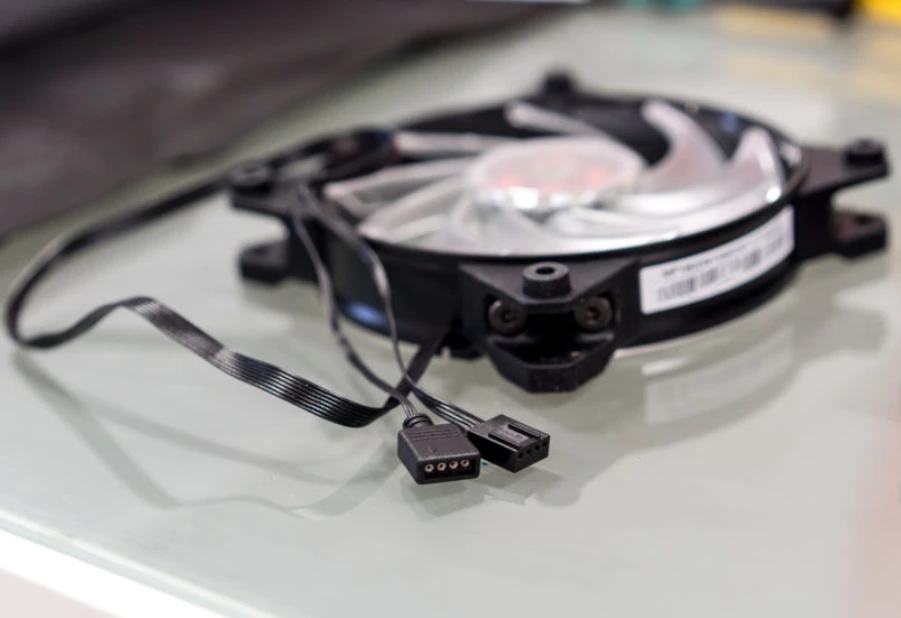
RGB Software Ecosystems
You want your PC to look as cool as it runs. RGB fans let you add color and style to your setup. To control those lights, you need the right software. Most brands offer their own RGB control programs. You might use ASUS Aura Sync, MSI Mystic Light, or Gigabyte RGB Fusion. These tools let you pick colors, set effects, and sync lighting with your other hardware.
You can also find advanced software like TT RGB PLUS 3.0. This platform brings together lighting control, system monitoring, and even mobile customization. Here’s a quick look at what it offers:
| Feature | Description |
|---|---|
| Software Name | TT RGB PLUS 3.0 |
| Integration | Combines features from older TT apps |
| Supported Functions | Controls RGB, monitors system, supports LCD displays |
| Mobile App | TT PlayLink for quick changes from your phone |
| Compatibility | Depends on your hardware and device |
| Supported Products | Fans, coolers, power supplies, memory, and more |
You can pick the software that matches your motherboard and fans. Most programs work best with their own brand, but some support third-party devices.
Syncing Fan Lighting
You might want all your fans and lights to match, even if they come from different brands. That’s where universal RGB tools come in handy. Here are some popular options:
- SignalRGB supports many devices and lets you create custom effects.
- OpenRGB works with lots of brands and gives you full control.
- JackNet helps you sync RGB lighting across different hardware.
These programs make it easy to get a unified look for your PC. You can set one color scheme and watch your whole system light up together.
Tip: Always check if your fans support the software you want to use. Some fans need special connectors or headers.
Linkwell RGB Fan Options
If you want reliable and stylish cooling, check out Linkwell’s RGB fan models. These fans give you bright, even lighting and smooth color transitions. You can use them with popular RGB software for easy control. Linkwell RGB fans also deliver strong airflow and quiet operation, so your PC stays cool and looks great. Whether you build a gaming rig or a workstation, Linkwell has options that fit your needs.
Want to upgrade your setup? Choose Linkwell RGB fans for performance, durability, and stunning lighting effects.
Fan Control on Prebuilt PCs
ASUS, iBUYPOWER, Lenovo, CyberPower
If you own a prebuilt PC from brands like ASUS, iBUYPOWER, Lenovo, or CyberPower, you might wonder how to manage fan control. Each brand sets up its system a little differently. ASUS often includes its own software, such as AI Suite, which lets you adjust fan control settings right from Windows. iBUYPOWER and CyberPower usually install their own utilities for fan control, making it easy to tweak cooling profiles. Lenovo desktops sometimes lock down advanced options, but you can still access basic fan control through BIOS or Lenovo Vantage software. You don’t need to be an expert to get started. Just open the utility that came with your PC and look for fan control or cooling settings.
Finding Fan Controllers
Many prebuilt PCs come with built-in fan controllers. These devices help you manage cooling without extra hardware. You can spot them in popular cases:
- Corsair Obsidian Series 1000D includes an integrated fan controller.
- NZXT H700i features a built-in fan controller for easy adjustments.
- Cooler Master MasterCase H500M offers both fan and RGB controllers.
- Thermaltake View 71 RGB provides a fan controller and customizable lighting.
- Phanteks Enthoo Pro comes equipped with a fan controller for efficient cooling.
If your PC uses one of these cases, you can access fan control through the case’s front panel or bundled software. This setup makes it simple to change speeds or lighting effects.
Upgrading with Linkwell Fans
Thinking about boosting your cooling? Upgrading to Linkwell Computer Chassis Fans can make a big difference. These fans work with most prebuilt systems and offer several advantages. Take a look at what you get:
| Benefit | Description |
|---|---|
| Precise Speed Control | You can adjust fan speed based on system temperature for better cooling. |
| Lower RPM Operation | Fans run at reduced speeds when full power isn’t needed, so your PC stays quiet. |
| Energy Efficiency | Fans use less power, which helps keep noise down and saves energy. |
You’ll notice your system runs cooler and quieter. Linkwell fans fit easily into most cases, and you can use them with existing fan control setups. If you want reliable performance and less noise, upgrading your pc fans to Linkwell is a smart move.
How to Control GPU Fan Speed
Keeping your gpu cool is just as important as managing your cpu. If you want to get the best gaming performance, you need to control gpu fan speed. Let’s look at how you can do this with easy-to-use tools and smart settings.
MSI Afterburner and Other Tools
You have several great options for controlling gpu fan speed. Here are some of the most popular programs:
- MSI Afterburner: Lets you set custom fan curves, track real-time gpu stats, and adjust fan speed based on temperature.
- SpeedFan: Allows you to manually change fan speed and automatically adjusts based on temperature trends.
- EasyTune 5: Offers Smart-Fan control and overclocking tools for both cpu and gpu.
- Argus Monitor: Supports gpu fan speed control and gives you alerts if temperatures get too high.
These tools help you create custom fan curves. You can make your gpu fans spin faster when the temperature rises and slow down when things cool off. This keeps your system quiet and efficient.
Tip: Always monitor your cpu and gpu temperatures when you change fan speed settings. This helps you avoid overheating and keeps your pc running smoothly.
GPU Fan Settings
You can tweak gpu fan speed for better cooling. Most tools let you set a fan curve, which means the fan speed changes as the gpu temperature goes up or down. If you play games, you want your gpu fans to ramp up quickly when things get hot. This prevents thermal throttling and keeps your frame rates high. Cooler temperatures let your gpu and cpu run at top speed longer, which is great for gaming.
Integrating Case and GPU Cooling
Good system cooling management means balancing airflow for both your cpu and gpu. Here’s how you can do it:
- Place intake fans at the front or bottom to pull in cool air.
- Set exhaust fans at the back and top to push out hot air.
- Use a high-quality case fan, like the Linkwell Computer Chassis Fan, to boost airflow and keep temperatures low.
- Make sure there’s space between your gpu and other parts for better air movement.
- Clean your pc often to stop dust from blocking airflow.
When you combine smart gpu fan speed settings with strong case fans, you get a cooler, quieter, and faster pc. The Linkwell Computer Chassis Fan helps your whole system stay cool, so your cpu and gpu can perform their best.
Using a Fan Controller or Fan Hub
Fan Controller Benefits
You might want more control over your PC’s cooling. That’s where a dedicated fan controller or fan hub comes in. These devices give you hands-on fancontrol, letting you adjust speeds and lighting right from your case or desktop. Check out the main benefits in the table below:
| Benefit | Description |
|---|---|
| Temperature Control | You can manage fan speed and airflow to keep your PC cool and prevent overheating. |
| Noise Reduction | Fine-tuning fan speeds helps you enjoy a quieter system, perfect for gaming or working. |
| Aesthetic Customization | You get to personalize lighting and fan speeds, making your setup look just how you want. |
| Longevity of Components | Keeping temperatures low means your hardware lasts longer and stays reliable. |
Fancontrol with a controller means you don’t have to rely only on your motherboard or software. You get instant adjustments and more flexibility for your fan control setup.
Fan Hub Setup
Setting up a fan hub is simple, but you want to get the most out of your fancontrol. Here are some quick tips to help you balance airflow and keep your system running smoothly:
- Set up custom fan curves in your BIOS or with software for the best speed at each temperature.
- Use dust filters on intake fans to keep airflow strong and protect your parts.
- Aim for a little more intake than exhaust airflow. This helps stop dust from sneaking into your PC.
With a good fan hub, you can connect several fans and manage them all together. This makes fancontrol easier, especially in larger cases.
Tip: Regular cleaning and smart fancontrol settings will keep your PC cool and quiet for years.
Linkwell Fan Controller Solutions
If you want reliable fancontrol, check out Linkwell’s fan controller products. These controllers work with a wide range of fans, including the Linkwell Computer Chassis Fan. You get smooth fan control, easy installation, and support for both PWM and DC fans. Linkwell’s solutions help you build a system that stays cool, runs quietly, and looks great. Whether you’re upgrading your gaming PC or setting up a workstation, Linkwell has the fancontrol tools you need.
Controlling Fans on a Laptop PC
Laptop Fan Control Limitations
You might wonder if you can use fancontrol on your laptop the same way you do on a desktop. Laptops work differently. Most models use built-in systems to manage cpu cooling. Manufacturers often lock down fancontrol in the BIOS. This means you can’t always change fan speed or set custom curves. The laptop’s embedded controller (EC) usually decides when the cpu fan turns on or off. You may not see any fancontrol options in your BIOS menu. Some laptops let you pick between quiet or performance modes, but you rarely get full control. If you try to use desktop fancontrol tools, they might not work or could even cause problems.
Software and BIOS Options
You still have a few ways to adjust fancontrol on your laptop. Some brands include their own software. For example, Lenovo Vantage, ASUS Armoury Crate, or Dell Power Manager let you pick cooling profiles. These profiles change how the cpu fan reacts to temperature. You might see options like Silent, Balanced, or Performance. Each one changes how quickly the cpu fan ramps up as the cpu heats up. A few advanced laptops offer limited fancontrol in the BIOS, but this is rare. If you want more control, you can try third-party programs like NoteBook FanControl. These tools sometimes work, but results vary by model. Always check your laptop’s support page before installing new fancontrol software.
Tip: If your laptop gets hot or noisy, try switching to a different power profile. Lowering the cpu workload can help reduce fan noise and keep temperature down.
Maintenance Tips
You can’t always change fancontrol settings, but you can keep your laptop cool with good habits. Regular maintenance helps your cpu fan work better and keeps temperature under control. Here are some easy tips:
- Use compressed air to clean dust from fan blades and vents.
- Try anti-static brushes for sensitive spots near the cpu.
- Wipe the outside panels with a microfiber cloth to avoid scratches.
- Replace thermal paste every two to three years to help the cpu transfer heat.
Keeping your laptop clean helps the cpu fan move air and keeps fancontrol working as designed. You’ll notice your laptop stays cooler and runs smoother.
Conclusion
You’ve learned a lot about controlling fans on your PC. Now, you can keep your system cool, quiet, and running at its best. Let’s wrap up with some key takeaways:
- Pick the right control method: BIOS settings give you stability. Software tools offer flexibility. Fan controllers and hubs add even more options. Choose what fits your PC and your comfort level.
- Use quality fans: High-performance fans like the Linkwell Computer Chassis Fan make a big difference. They give you strong airflow, low noise, and long-lasting reliability.
- Don’t forget maintenance: Dust and dirt can slow down your fans. Clean your PC regularly. Check your fan settings every few months to make sure everything works as it should.
- Monitor your system: Watch your temperatures. If you see your PC getting hot, adjust your fan curves or speed settings. Stay ahead of problems before they start.
Tip: A cool PC lasts longer and performs better. Take a few minutes each season to check your fans and settings.
If you want a quiet workspace or a gaming powerhouse, smart fan control helps you get there. You don’t need to be a tech expert. Just follow the steps, use the right tools, and pick reliable hardware. Linkwell fans give you the edge for any build, from home office PCs to high-end gaming rigs.
Ready to upgrade your cooling? Visit Linkwell’s Computer Chassis Fan page to find the perfect fan for your setup. Your PC will thank you!
You want your PC to run cool and quiet. Start by picking the right fan control method for your setup. Use BIOS, software, or a fan controller. Choose high-quality fans like the Linkwell Computer Chassis Fan for strong airflow and low noise. Clean your fans and check your settings every few months.
- Pick the best control method for your PC.
- Upgrade to reliable fans for better cooling.
- Keep your system clean for long-term stability.
Tip: Regular monitoring helps you catch problems early and keeps your PC performing at its best.
FAQ
Anyway to control fans on PC?
You can control fans using BIOS settings, software tools, or a fan controller. Most modern PCs let you adjust fan speed for better cooling and quieter operation.
Easy way to control fans on PC?
Try using fan control software like Fan Control or SpeedFan. These programs give you a simple interface to change fan speed without opening your PC case.
How to turn off fan control on PC?
Go into your BIOS or fan control software. Set fans to run at full speed or choose the default profile. This disables custom fan curves and returns control to the system.
PC fan controller effect on mouse latency?
Fan controllers do not affect mouse latency. They work independently from your input devices. You can adjust fan speed without worrying about lag in games or apps.