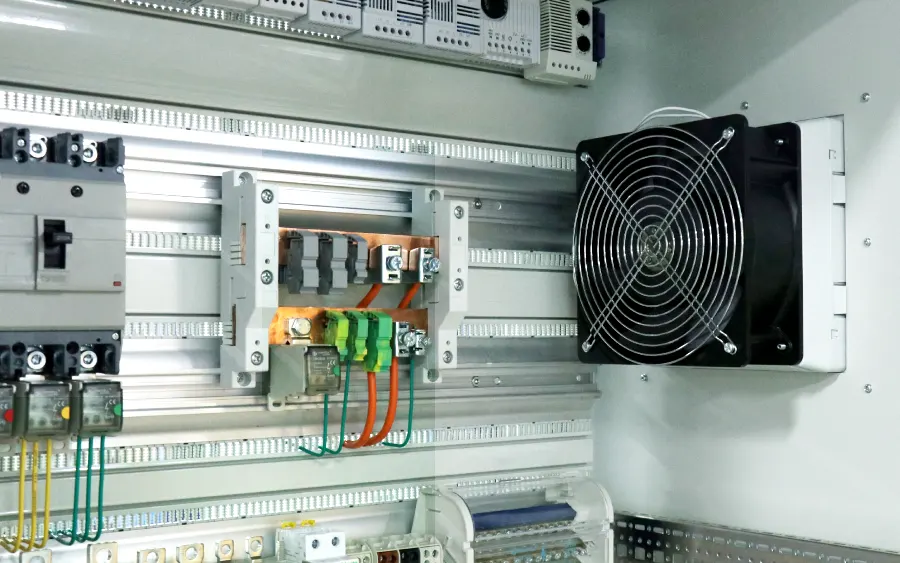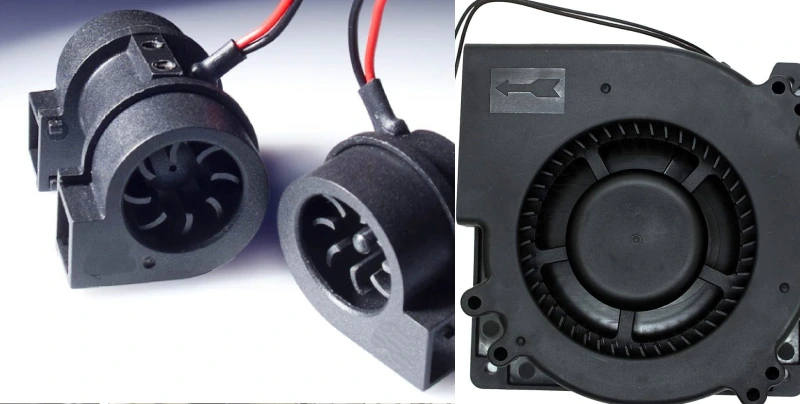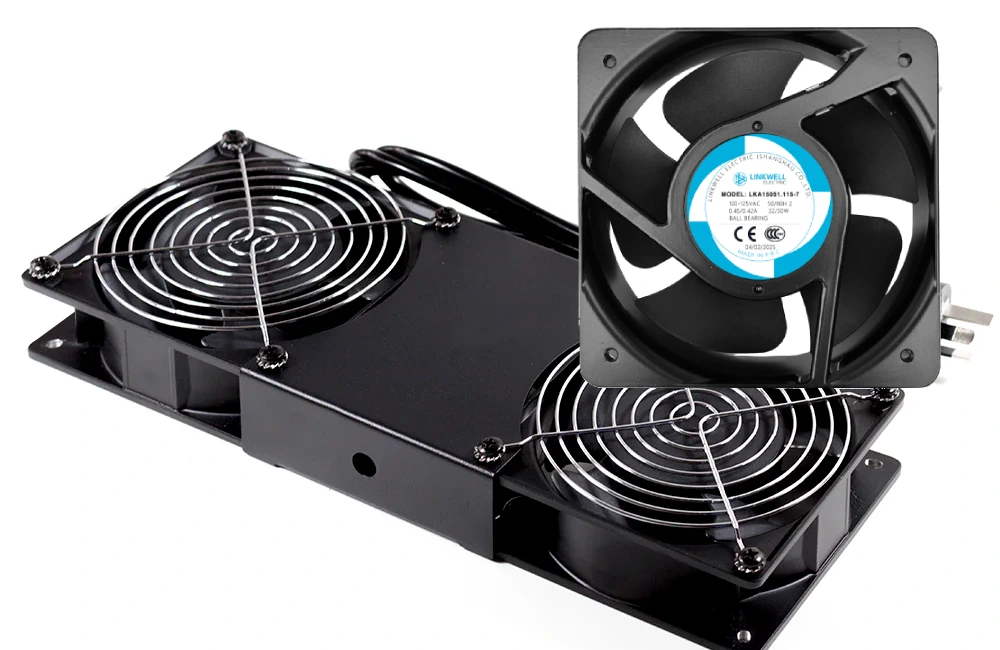
If you want your PC or cabinet to run cool and quiet, you need to pay attention to fan speed. When you get cooling right, you help your system avoid slowdowns and crashes. You also keep your components working longer and more efficiently. Most fans last for years, sometimes even a decade, if you take care of them and keep conditions right. Fans with PWM control can run at lower speeds and still keep things cool, which means less noise and more reliability. Linkwell offers advanced Computer Chassis Fans and Cabinet Fans to help you find the best fit for your setup. If you need advice or a custom solution, their expert team and OEM services are ready to help.
Key Takeaways
- Adjust fan speed using BIOS or software for optimal cooling and reduced noise.
- Regularly clean your fans to prevent dust buildup and maintain airflow.
- Choose PWM fans for better control, quieter operation, and energy efficiency.
- Monitor system temperatures to ensure fans are set correctly and avoid overheating.
- Consider Linkwell fans for high airflow, low noise, and long-lasting performance.
Why Fan Speed Matters
Cooling Performance
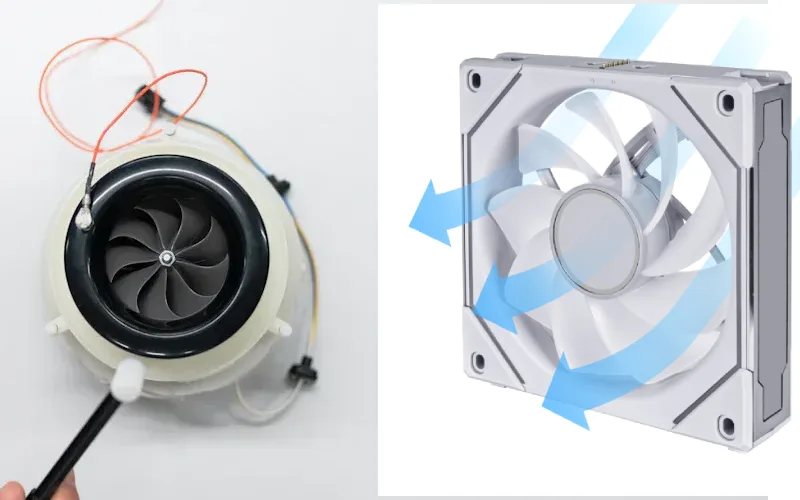
You want your PC or cabinet to stay cool, right? Fan speed plays a huge role in how well your system handles heat. When you increase fan speed, you boost airflow and static pressure. This helps push hot air out and pull cool air in, keeping your components safe. Here’s what happens when you adjust fan speed:
- Higher RPM means more airflow and better cooling.
- More static pressure helps fans work in tight spaces, like crowded server racks.
- If you set fan speed too high, you use more power and create more noise.
You need to think about system impedance, too. If your cabinet is packed with equipment, airflow can drop. Picking the right fan speed helps you get the best cooling without wasting energy.
Noise and Comfort
Nobody likes a noisy workspace. When you crank up fan speed, you get more cooling, but you also get more noise. Fans make different sounds, like airflow noise, mechanical noise from moving parts, and even electrical noise. The environment matters, too. If you measure noise in a quiet room, it sounds louder than in a busy office. Here’s what you should know:
- Faster fan speed means more turbulence and higher noise levels.
- The type of noise changes with speed, so you might hear whirring, humming, or buzzing.
- Distance from the fan affects how loud it seems.
If you want a quiet setup, try lowering fan speed or using fans designed for silent operation.
Hardware Longevity
Running your fans at the right speed helps your hardware last longer. If you push fan speed too high all the time, you use more energy and wear out your fans faster. Take a look at how changing fan speed affects energy use:
| Fan Speed Change | Airflow Change | Pressure Change | Energy Consumption Change |
|---|---|---|---|
| Reduced by 10% | Decreases by 10% | Decreases by 19% | Decreases by 27% |
Lowering fan speed can save energy and reduce wear, but you still need enough cooling. Find a balance that keeps your system cool and your fans running smoothly for years.
Choosing Fan Speed
Factors Affecting Fan Speed
You might wonder why some fans need to spin faster than others. The answer depends on a few important things. If you want your PC or cabinet to stay cool and quiet, you need to look at the whole setup. Here are the main factors that affect how fast your fans should run:
- Fan size: Bigger fans, like 120mm or 140mm, can move more air at lower speeds. This means they cool better and make less noise.
- Airflow and static pressure: Some fans push air through tight spaces, while others work best in open areas. High static pressure fans help in crowded cases or cabinets.
- Bearing type: The type of bearing inside the fan changes how smooth and quiet it runs.
- Installation position: Where you place the fan matters. Intake fans pull cool air in, while exhaust fans push hot air out.
- Environmental conditions: Hot rooms or dusty spaces make your fans work harder. If your cabinet sits in a warm spot, you may need higher fan speed.
- Component heat: Powerful CPUs, GPUs, or transformers create more heat. More heat means you need more airflow.
Tip: If you have a large case or cabinet, try using bigger fans. They keep things cool without making a lot of noise.
Recommended RPM Ranges
Choosing the right RPM (revolutions per minute) for your fans can feel tricky, but you don’t have to guess. Most PC and cabinet fans work best within certain speed ranges. Here’s a quick guide to help you pick the right setting:
| Fan Type | Recommended RPM Range | Best Use Case |
|---|---|---|
| 80mm PC/Chassis Fan | 1800–2500 RPM | Small cases, focused cooling |
| 120mm Computer Chassis Fan | 1000–1800 RPM | Standard builds, quiet operation |
| 140mm Computer Chassis Fan | 800–1500 RPM | Large cases, high airflow, low noise |
| Cabinet Fan (Linkwell DC22060) | 2000–3000 RPM | Electrical/control cabinets |
| Cabinet Fan (Linkwell FU/LK32) | 1500–2500 RPM | Telecom, automation, general use |
If you use Linkwell’s Computer Chassis Fan, you get advanced PWM control. This lets you adjust fan speed based on your system’s needs. For cabinets, Linkwell’s Cabinet Fan models offer high airflow and low noise, even at higher RPMs. You can pick a model that matches your cooling needs and space.
Note: Always check your fan’s specs before changing the speed. Some fans can handle higher RPMs, while others work best at lower speeds.
Signs of Incorrect Fan Speed
How do you know if your fan speed is set just right? Your system gives you clues. Watch for these signs to spot problems early:
- Loud noises or constant whirring mean your fan might be spinning too fast.
- If your PC or cabinet feels hot, or you notice system crashes, your fan could be too slow.
- Sudden jumps in CPU or component temperature on your monitoring software signal trouble.
- Fans that never change speed, even when your system heats up, may not be set up correctly.
If you hear rattling or buzzing, check for dust or loose screws. Sometimes, cleaning your fans or adjusting their speed can fix the problem.
Pro Tip: Use free software tools to watch your fan speed and temperatures. This helps you catch issues before they cause damage.
Adjusting Fan Speed
BIOS and Software Control
You have more control over your cooling than you might think. Most modern PCs let you adjust how fast your fans spin right from the BIOS or with special software. When you enter your BIOS, you can set custom fan profiles. This means you can make your fans run faster when your system gets hot or slow them down for quiet times. Some advanced programs even let you create different profiles for gaming, working, or just browsing the web.
Here are some ways you can control your fans:
- Use BIOS settings to set fan curves or fixed speeds.
- Try software utilities that change fan settings without restarting your PC.
- Create custom profiles for overclocking or silent operation.
- Switch between profiles based on what you’re doing or which app you’re using.
Most software tools work by changing the same settings you’d find in the BIOS. You don’t have to pick one or the other—they work together to give you more options.
Tip: If you want your PC to stay quiet at night but cool during gaming, set up two profiles and switch between them as needed.
Manual Fan Controllers
If you like hands-on control, you might enjoy using a manual fan controller. These devices fit into your PC case or cabinet and let you turn knobs or press buttons to change fan speed. You get instant feedback and can fine-tune your cooling on the fly.
Let’s see how manual controllers stack up against automated software solutions:
| Feature | Manual Fan Controllers | Automated Fan Controllers |
|---|---|---|
| Speed Adjustment | Basic speed adjustments | Optimizes performance based on environmental factors |
| User Control | Requires physical adjustment | Can be controlled remotely and programmed |
| Energy Efficiency | Less efficient, often fixed speeds | More energy-efficient through real-time adjustments |
| Integration with Smart Systems | Limited integration | Fully integrated with smart home systems |
| Responsiveness | Static, user-dependent | Dynamic, adjusts based on real-time data |
Manual controllers give you direct control, but you have to remember to adjust them when your system heats up. Automated solutions do the work for you, changing speeds as needed to keep things cool and quiet.
Note: Manual controllers are great if you want to experiment or need quick changes, but automated systems save energy and react faster to temperature changes.
PWM vs DC Fans
When you shop for fans, you’ll see two main types: DC fans and PWM fans. The way they control speed is different, and this affects how well they cool your system.
Here’s a quick comparison:
| Feature | DC Fan | PWM Fan |
|---|---|---|
| Control Method | Voltage control | PWM control |
| Speed Variation | Limited to 40% of rated speed | Can go below 20% of rated speed |
| Motor Stalling | Possible below minimum speed | No chance of stalling |
PWM fans stand out because they give you precise control. You can match airflow to exactly what your system needs. They also run quieter since they don’t always spin at full speed. PWM fans use only as much power as needed, so they’re more energy-efficient.
- PWM fans let you fine-tune your cooling for every situation.
- They help keep noise low, even when your system is working hard.
- You save energy because the fan only uses what it needs.
If you want the best mix of quiet operation, energy savings, and reliable cooling, PWM fans are a smart choice.
Pro Tip: Many of Linkwellelectrics’ Computer Chassis Fans and Cabinet Fans use advanced PWM control, so you get the best performance and flexibility for your setup.
Balancing Cooling and Noise
Fan Profiles for Different Uses
You probably use your PC or cabinet for more than one thing. Sometimes you want it whisper-quiet, other times you need it to stay cool during heavy work. That’s where fan profiles come in. These profiles let you pick how your fans behave based on what you’re doing. Most systems offer preset profiles like Silent, Standard, and Performance. You can also create your own custom settings.
- Silent Profile: Great for watching movies, working late, or just relaxing. Fans spin slowly or even stop when temperatures are low. You get a peaceful environment with almost no noise.
- Standard Profile: Good for everyday tasks. Fans ramp up only when needed, so you get a balance between cooling and comfort.
- Performance Profile: Perfect for gaming, video editing, or running lots of programs. Fans spin faster to keep everything cool, even if it means a bit more noise.
You can switch profiles with just a few clicks. Some software even lets you set profiles for each fan or temperature sensor. This way, you control how your system sounds and feels.
Tip: Try different profiles to see which one fits your daily routine best. You might be surprised how much quieter your setup can get!
Silent vs Performance Modes
Choosing between silent and performance modes can feel tricky. Each mode changes how your system handles heat and noise. Here’s a quick look at what you can expect:
| Mode | Temperature Impact | Noise Output Impact |
|---|---|---|
| Silent Mode | Lower temperatures due to limited wattage to CPU/GPU | Fan noise under 35dBA, can turn off fans entirely at low temperatures |
| Performance Mode | Higher temperatures due to increased wattage to CPU/GPU | Increased fan activity, but maintains reasonable noise levels |
When you pick silent mode, your system limits power to the CPU or GPU. This keeps things cool without much noise. Fans may even stop spinning when your PC or cabinet is cool enough. If you need more power, performance mode lets your hardware run faster. Fans spin up to handle the extra heat, so you hear more noise, but your system stays safe.
You can adjust fan speed to match your needs. If you want a quiet workspace, silent mode is your friend. For demanding tasks, switch to performance mode and let your fans do the heavy lifting.
Linkwell Cooling Solutions
Computer Chassis Fan Features
If you want your PC to stay cool and quiet, you should check out Linkwell’s Computer Chassis Fans. These fans push more air than most competitors, so your system gets better cooling. You also get less noise, which means you can work or play without distractions. Take a look at how Linkwell stacks up:
| Feature | Linkwell Fan | Competitors |
|---|---|---|
| Airflow (CFM) | 84 | 60 (average) |
| Noise Level (dBA) | Low | Moderate (30-40) |
| Impedance Protection | Yes | No |
| Energy Efficiency | High | Moderate |
You get high airflow, low noise, and extra protection for your equipment. These fans use less power, so you save on energy bills.
Cabinet Fan Advantages
Linkwell Cabinet Fans help your electrical cabinets stay cool and safe. You don’t have to worry about overheating or frequent replacements. The fans use tough materials, so they last longer and cut down on electronic waste. Their energy-saving design means you use less electricity, which is good for your wallet and the planet. You can adjust the speed and choose eco-friendly options for even more savings.
Tip: If you want a reliable fan that keeps your cabinets running smoothly, Linkwell Cabinet Fans are a smart choice.
OEM and Support Services
You get more than just fans when you choose Linkwell. The company offers flexible order sizes, fast shipping, and expert technical support. You can customize your fans with logo printing, special packaging, or design tweaks to fit your brand. Linkwell’s strong export experience means your order arrives safely, no matter where you are.
| Service Type | Description |
|---|---|
| Flexible Order Quantities | You can order as much or as little as you need. |
| Fast Delivery Schedules | Quick turnaround keeps your projects on track. |
| Comprehensive Technical Support | Get help whenever you need it. |
| OEM/ODM Customization | Tailor fans to your specs, branding, and packaging. |
| Strong Export Experience | Reliable shipping and customs clearance worldwide. |
Linkwell cooling products meet top standards like CE, UL, RoHS, and ISO. You can trust them for safety and quality in any industry, from automation to energy storage.
Common Fan Speed Mistakes
Over-spinning and Noise
You might think running your fans at full blast keeps your system cooler, but that’s not always true. Over-spinning fans can actually cause more problems than they solve. When fans spin too fast, they wear out the bearings quickly. You may hear loud noises or even notice vibrations. If you use compressed air to clean your fans without holding the blades still, you risk spinning them way faster than normal. This can push dust deep into the bearings and damage the fan structure. Sometimes, over-spinning can even create electricity that harms your components.
Tip: Always hold the fan blades in place when cleaning with compressed air. This simple step protects your fans from damage.
- Excessive wear on fan bearings
- Risk of electrical damage to components
- Dust forced into bearings, causing more harm
Under-cooling Risks
Setting your fan speed too low can be just as risky. If your fans don’t move enough air, your PC or cabinet can overheat. Overheating leads to malfunctions and can shorten the life of your electronics. You might face sudden shutdowns or expensive repairs. Sometimes, you won’t notice a problem until it’s too late, like when you hear loud noises from a failing fan motor.
- Overheating causes malfunctions and failures
- Unplanned downtime for repairs and replacements
- Shortened lifespan of components due to thermal damage
- Harder to spot issues until they become severe
Ignoring Maintenance
You can’t just set your fans and forget about them. Regular maintenance keeps your cooling system working efficiently. If you skip cleaning or checking your fans, dirt and debris build up. This blocks airflow and makes your system work harder, which means higher energy bills and more wear on your parts. Ignoring maintenance can lead to breakdowns when you least expect them.
Note: Schedule simple checks every few months. Clean dust, check for loose screws, and make sure your fans spin smoothly. Your system will thank you with better performance and reliability.
Many users also make mistakes like installing fans in the wrong direction or forgetting to balance intake and exhaust. Not setting proper fan curves can leave your system noisy or under-cooled. Paying attention to these details helps you avoid common pitfalls and keeps your PC or cabinet running smoothly.
Contact Linkwell for Cooling Solutions
Are you ready to upgrade your cooling system? Linkwell makes it easy for you to get started, whether you need a quick quote, a custom fan, or expert help.
Request a Quote
You can request a quote from Linkwell in just a few steps. All you need to do is share some basic information. This helps the team understand your needs and get back to you fast. Usually, you will hear back within 12 hours. Here’s what you should prepare:
| Information Required | Response Time |
|---|---|
| Name | Within 12 hours |
| Company | |
| Country | |
| Inquiry Details |
You can send your details by email or through the website. The team will review your request and reply with a solution that fits your project.
OEM and Customization
Do you want a fan that matches your exact needs? Linkwell offers many options for OEM and custom orders. You can choose the size, material, and even the number of blades. If you need a special blade design or want to boost energy efficiency, just ask. Here are some ways you can customize your fan:
- Pick the right size for your cabinet or PC case.
- Select materials that match your environment.
- Decide how many blades you want.
- Request unique blade shapes for special airflow.
- Add features to save energy.
You get a fan that works perfectly for your setup.
Technical Support
If you ever run into trouble, Linkwell’s support team is ready to help. They can guide you through setup, troubleshooting, and fan speed adjustments. Here’s how they can assist you:
- Check if your fan is connected to the motherboard the right way.
- Test the power supply with a multimeter.
- Make sure your BIOS is set to PWM mode.
- Review your fan curve settings.
- Confirm that temperature sensors work.
- Help you check if your fan software matches your motherboard.
You don’t have to solve problems alone. Just reach out, and you’ll get friendly, expert advice.
Conclusion
You’ve learned a lot about fan speed and how it affects your PC or cabinet. Now, you know that the right fan speed keeps your system cool, quiet, and running longer. You can spot problems early and fix them before they get worse. You also understand how to balance cooling and noise, so your workspace feels comfortable.
Let’s recap the main points:
- Fan speed matters for cooling, noise, and hardware life.
- You can adjust fan speed using BIOS, software, or manual controllers.
- PWM fans give you more control and save energy.
- Regular maintenance helps your fans work better and last longer.
- Linkwell offers advanced Computer Chassis Fans and Cabinet Fans with high airflow, low noise, and strong durability.
Tip: If you want a cooler and quieter setup, try Linkwell’s fans. You get expert support, fast delivery, and custom solutions for any project.
Here’s a quick checklist to help you optimize your cooling:
| Step | What to Do | Why It Matters |
|---|---|---|
| Check fan specs | Match RPM and size to your needs | Prevent overheating |
| Set fan profiles | Use silent or performance modes | Balance noise/cooling |
| Clean fans regularly | Remove dust and debris | Boost airflow |
| Monitor temperatures | Use software tools | Catch issues early |
| Contact Linkwell | Request quotes or support | Get expert solutions |
You don’t have to figure it out alone. Linkwell’s team is ready to help you pick the best fan, customize your order, or solve any cooling problem. Just reach out by email, phone, or through their website. Your PC or cabinet will thank you for it!
You can keep your PC or cabinet cool, quiet, and reliable by following a few simple steps:
- Use software or BIOS to fine-tune fan speeds for less noise and better cooling.
- Clean dust and manage cables to help fans work their best.
- Choose Linkwell fans for high airflow, quiet operation, and long-lasting performance.
| Fan Type | Airflow Strength | Best For | Efficiency in Tight Spaces |
|---|---|---|---|
| Cabinet Exhaust Fans | High | Packed cabinets | Excellent |
| Axial Fans | Moderate | Open cabinets | Good |
Need help? You can reach out to Linkwell for fast quotes, expert support, and quick delivery—no matter your order size.
FAQ
How do I know if my fan speed is set correctly?
You can check your system temperatures using free software. If your PC or cabinet stays cool and quiet, you likely have the right speed. Watch for sudden temperature spikes or loud noises as warning signs.
Can I use Linkwell fans in both PCs and industrial cabinets?
Yes! Linkwell fans work great in both PCs and industrial cabinets. You just need to pick the right size and model for your setup. Their team can help you choose the best option.
What is PWM control, and why should I use it?
PWM (Pulse Width Modulation) lets you adjust fan speed automatically. You get quieter operation and better energy savings. Your system stays cool without running fans at full speed all the time.
How often should I clean my fans?
You should clean your fans every 2–3 months. Dust can block airflow and make your system run hotter. Use a soft brush or compressed air for best results.